
Night Light Help
How do I set a schedule/timer to control the Night Light?
You can follow the steps below to set a schedule/timer to control the Night Light.
2. Echo Flex will detect your Night Light automatically. If Echo Flex does not detect the Night Light automatically, please see “How to manually have Echo Flex to sync up new Devices” below.
3. In Alexa app, selects, “Options” at the top left as below:

4. Select “Routines” as below:

5. In the “CREATE A ROUTINE” page, click “+” sign to create a routine “Everyday , at 18:30” as below:

6. In the “NEW ROUTINE” page, click “+” sign along with “When this happens” as below:

7. In the “WHEN THIS HAPPENS” page, select “Schedule” as below:

8. In the “Schedule” page, there are 3 choices. You can set the time according to you request. e.g. 18:30:

a. Click “At Time”, two options will be available.

b. Select 18:30 under “At Time”

c. Tap “Select” belong to “Repeat” to choose how many days a week you want this routine work, e.g. Every Day.

9. Back on the main page, click “+” sign along with “Add action”.

a. Select “Smart Home”

10. If your Smart Night Light has been setup, you should see “Lights” under “All Devices”

11. Select “Light”, there may be a lot of choices depending to your actual situation. So, you will need to confirm which one is our Smart Night Light and select it. e.g. First Light.

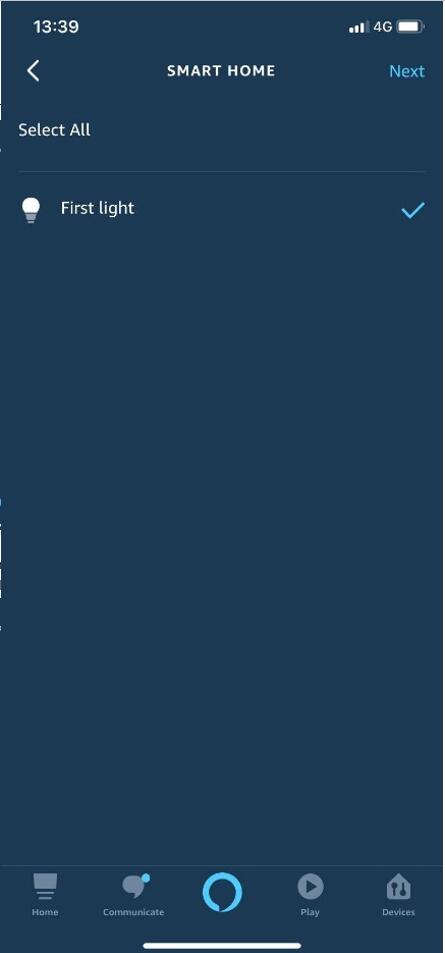
12. In the “First Light” page , select power ON, and the brightness and color according to your preference.
How to turn off Ambient Light Sensor (ALS)?
If you want to turn off ambient light sensor or ALS:
Unplug and plug back in the Night Light from the Echo Flex for four times.
Troubleshooting your Night Light?
If the Night Light has become unresponsive, please try the following:
Unplug the Night Light from Echo Flex
Reboot your Echo Flex by unplugging and plugging it back in
After Echo Flex has completed rebooting, plug the Night Light back to the Echo Flex
Restart the Alexa app.